Kolors virtual try-on: inputs, workflow, and result checks
Understand the official Kolors virtual try-on demo, prepare its two image inputs, and evaluate a generated outfit without confusing it with a fit prediction.
Quick answer
Kolors virtual try-on uses a person photo and a garment photo to generate an outfit visualization. Open the official Kwai-Kolors Hugging Face Space, add both images and run the demo. Keep both originals and check clothing details and the person's appearance against them; the image does not establish real-world fit.
- Use the official Kwai-Kolors Hugging Face Space to identify the published demo.
- The interface defines separate person-image and garment-image inputs, a Run action and seed controls.
- Compare the output with both original images. A convincing try-on image does not establish real garment fit.
Kolors virtual try-on has an official Hugging Face Space published under Kwai-Kolors. Its documented workflow uses a person image and a garment image to produce an outfit visualization. This guide explains that workflow and offers a checklist for judging your own output; it is not a hands-on performance ranking.
Find the official demo before uploading
Use the Kwai-Kolors/Kolors-Virtual-Try-On Space linked in the sources below. The published interface has person and garment image inputs, a result panel, and a Run action. Similar names on other sites do not establish an affiliation with the original publisher.
Before uploading to any hosted demo, review its current notices and decide whether the images are appropriate to share with that service. Use photographs you are permitted to use. If you are just learning the interface, prefer any provided examples to personal photographs.
The Space is published under the Kwai-Kolors account on Hugging Face. Kwai-Kolors: official virtual try-on Space [1]
Prepare the person and garment as a matched pair
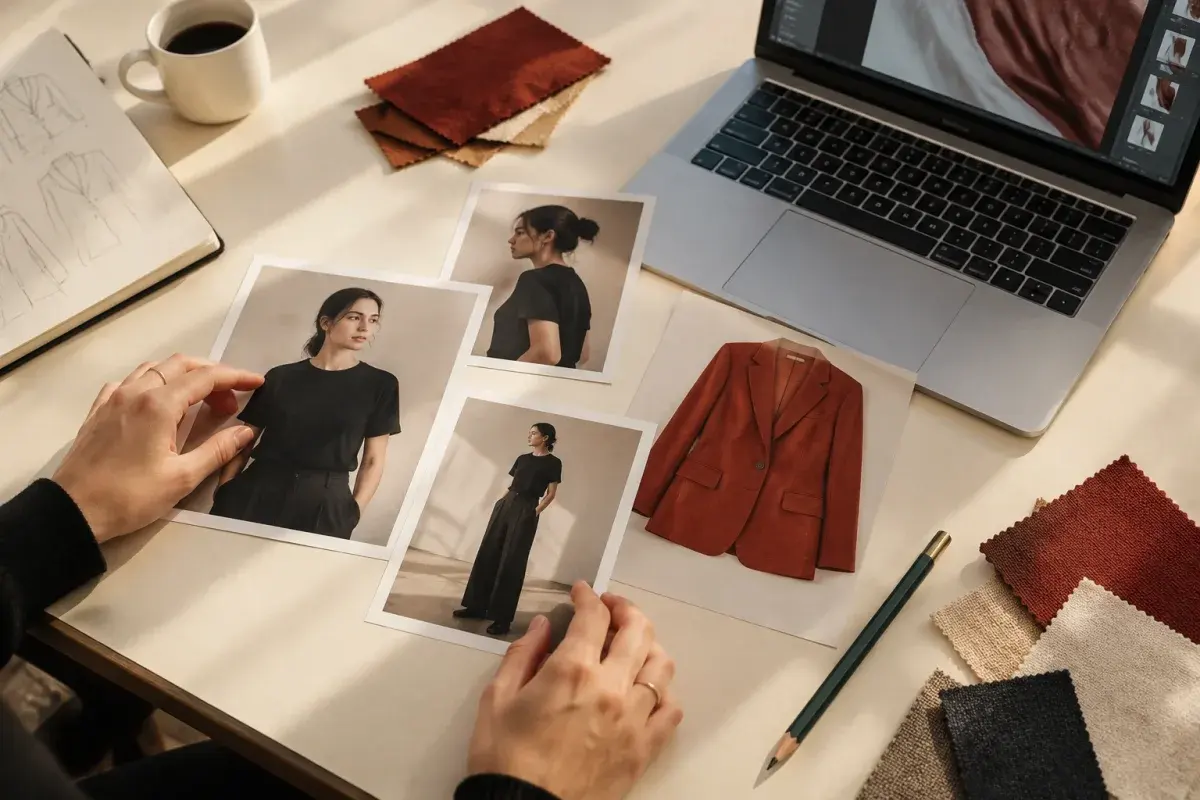
For your first attempt, make the two inputs easy to compare. Choose one clear person photograph and one complete garment photograph. Avoid evaluating a complicated pose, an obscured garment, and a busy reference image in the same attempt.
Write down the change you expect before running it. For example: replace a plain top with the reference jacket while keeping the person and scene recognizable. That gives you something concrete to assess instead of judging only whether the output looks polished.
- Keep the relevant body area visible in the person photograph.
- Use a reference with a readable neckline, sleeves, closures, and hem.
- Retain the originals so you can compare the output side by side.
Follow the demo’s image workflow
The published demo accepts both images, runs generation, and shows the result. It also exposes a seed and a random-seed control. Availability and completion time depend on the hosted service; this guide does not promise a fixed wait time or an always-available service.
For your own comparison, keep a note of the input files and any controls you change. A second attempt is easier to interpret when you know whether you changed the reference, the person photo, or a generation setting. If several things change together, you cannot tell which one helped.
The published app.py defines Person image and Garment image inputs, a Result output and generation controls. Kwai-Kolors: published demo interface and workflow [2]
Check fidelity before deciding the result works
Use two passes when assessing the output. First look at the image as a whole: does the silhouette communicate the intended outfit? Then zoom in and compare specific features against the source garment and person.
Treat the checklist below as your evaluation method, not as claims about a particular model’s measured performance. Save a note about the exact detail that failed so your next attempt addresses that issue.
- Identity: compare the face, hairstyle, pose, and body proportions.
- Construction: compare closures, seams, pockets, sleeve length, and hem.
- Surface: compare patterns, text, logos, and fabric appearance.
- Boundaries: inspect where the clothing meets hands, hair, bags, and the background.
- Usefulness: decide whether the visualization answers your original styling question.
Choose a workflow for the decision you need to make
If you want to understand the Kolors demo, keep using the official service and its current documentation. If you want to try a reference outfit on your photo, ClothesSwitch offers a separate homepage workflow with optional styling instructions. It does not claim to use the Kolors model.
Neither an attractive generated image nor a close visual match proves that a real item will fit. Use actual measurements and product information for a purchase. For a more controlled comparison between services, reuse the same permitted inputs and judge each output against the same checklist.
Frequently asked questions
What photos do I need for Kolors virtual try-on?
The documented demo uses a person image and a garment image. For a first attempt, choose one clear person photo with the relevant body area visible and one complete garment reference with a readable neckline, sleeves, and hem. Keep both originals so you can compare the generated clothing and the person’s appearance with the inputs.
Does ClothesSwitch use Kolors virtual try-on?
ClothesSwitch provides a separate outfit-changing workflow and does not claim to use the Kolors model. To explore Kolors itself, use the official Kwai-Kolors Hugging Face Space linked in this guide’s sources. Our studio’s instructions and controls should not be treated as instructions for that demo.
Sources and editorial notes
This guide explains the official Kwai-Kolors demo and its publicly available interface code. It is not a deployment tutorial or a controlled quality benchmark. ClothesSwitch is a separate product and does not claim to use the Kolors model.
Editorial update: October 24, 2026. The references below support the attributed information in this guide. Third-party features and terms may change; check the linked publisher before acting.
- Kwai-Kolors: official virtual try-on Space huggingface.co
- Kwai-Kolors: published demo interface and workflow huggingface.co