How to Change Clothes in a Photo: A Step-by-Step Guide
Learn how to change clothes in a photo with a clothing reference, optional instructions, and a step-by-step walkthrough of ClothesSwitch.
Quick answer
To change clothes in a photo, upload a person photo and an outfit reference, add any styling instructions, and generate the edited image. Compare the result with both inputs before downloading. ClothesSwitch requires an active paid subscription and both photos; instructions alone do not replace the clothing reference.
- Prepare two images: a clear photo of the person and a complete view of the reference outfit.
- Add optional instructions, generate, then compare the person and garment with both originals.
- ClothesSwitch generation requires sign-in and an active paid subscription. Instructions do not replace either image.
You have a photo you like, but want to try a different outfit. A clothes changer lets you use a second image as the clothing reference and generate another version of the photo. In ClothesSwitch, generation requires sign-in and an active paid subscription. Upload both pictures, add any styling instructions, and select Change my outfit once subscription access is available. This guide walks through the actual studio controls, then shows what to check before you save the result.
Before you start: decide what you want to change
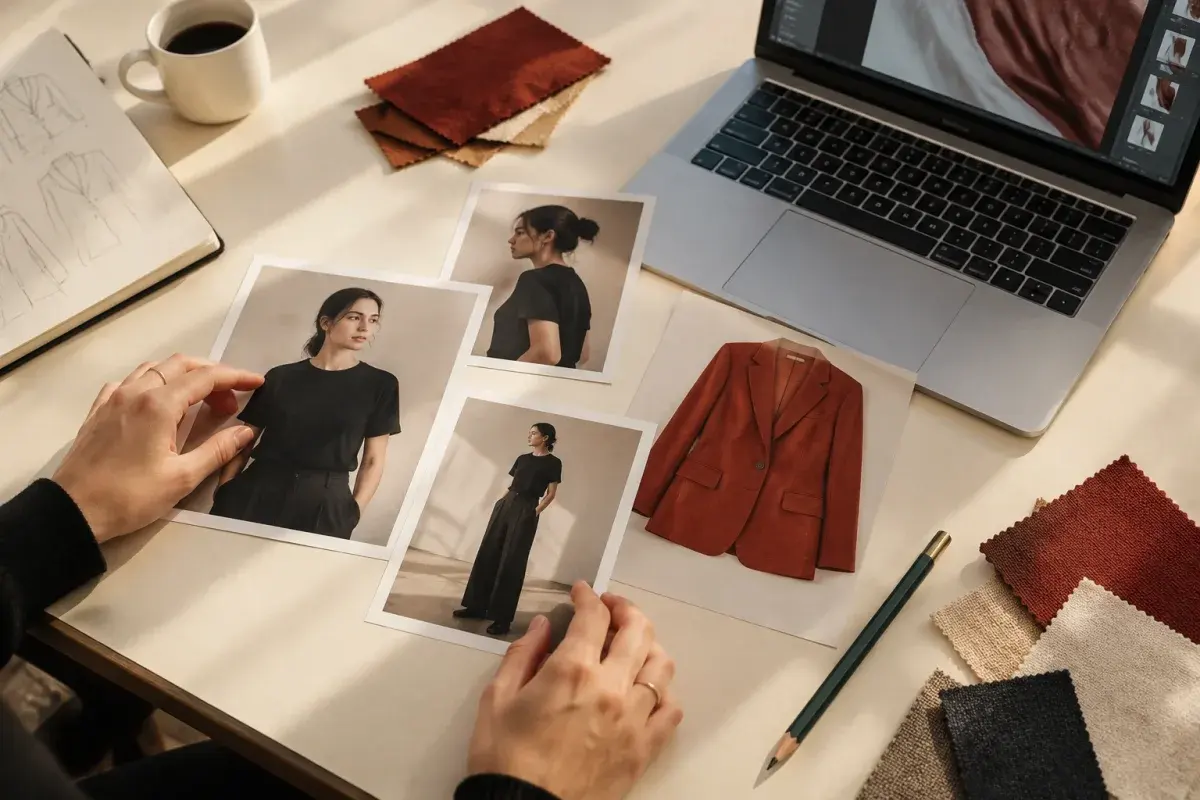
Decide whether you want a new top, a dress, or a complete outfit. That choice determines how much of the person needs to appear in the photograph. A portrait showing the shoulders and torso may be enough for a shirt; a longer dress needs room for the hem and legs.
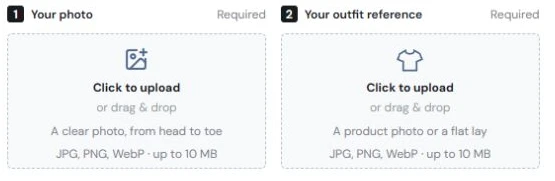
Have two image files ready: your person photo and the clothes you want to use as a reference. The upload areas accept JPG, PNG, or WebP files up to 10 MB each. If you want to explore the interface first, select Try an example. That loads sample inputs; you still need to generate to create a new outfit.
- For a specific garment, use a reference that clearly shows that item.
- For one-piece changes, decide which existing clothes and accessories should remain.
- For a whole look, use one reference showing the pieces together rather than a collage of competing outfits.
FASHN also documents a model-image and product-image workflow. That is a separate service, cited here to explain the reference-image approach. FASHN Help: model and product inputs for reference-based try-on [1]
Step 1: upload a clear person photo
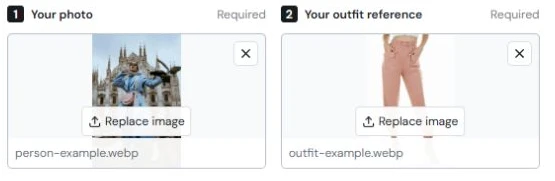
Open the homepage changing room. Under Your photo, select Click to upload, or drag your file into that area. Check the preview before moving on. If you selected the wrong file, use Replace image to choose another.
For a full outfit change, use a head-to-toe photo with one adult in the frame. For a jacket or shirt, keep the torso and sleeves visible. Look at the original at normal viewing size: if you cannot tell where a sleeve ends or a waistband begins, a clearer photograph will give you a more useful starting point.
- Use even light and a sharp original, rather than a compressed screenshot.
- Keep hands, bags, hair, and furniture away from the clothing where possible.
- Choose a natural pose with enough space around the body for the new silhouette.
Step 2: add your outfit reference
Under Your outfit reference, upload a product photograph, flat lay, or photo of the garment being worn. Keep the item complete in the frame. A close-up of a collar can show fabric detail, but does not explain the shape of a whole shirt.
You can also paste a supported Amazon product link into Or import an outfit from Amazon and select Get image. The product’s main image appears below the link field. Select Use this image to add it to Your outfit reference; fetching alone does not replace your current reference. Check the product angle and variant first. If it is unsuitable or the link cannot be imported, upload your preferred image instead.
- Check that the color, neckline, hem, and sleeves can all be seen.
- For a patterned garment, choose an image with enough detail to judge the pattern.
- If an imported image shows the wrong product angle, upload your preferred reference instead.
Step 3: add an optional styling instruction
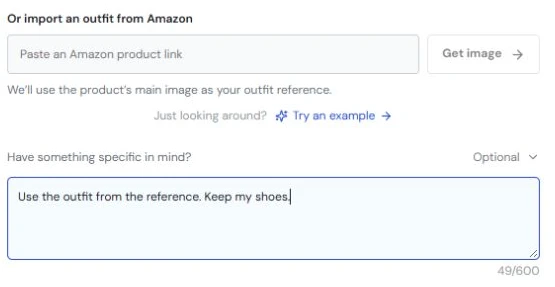
The Have something specific in mind? box starts open. You can leave it blank when you want the reference outfit to guide the change, or use it to identify a piece to replace, an accessory to retain, or a styling choice such as an open jacket.
Keep the request consistent with the reference. For example, if your reference shows a jacket and trousers but you only want the jacket, say so. The box accepts up to 600 characters; you do not need to fill it. Start with the change that matters most and check whether the output follows it.
Step 4: generate, compare, and download
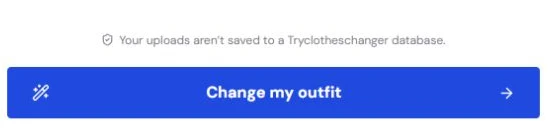
Once both previews show the images you intended, select Change my outfit at the bottom of the input panel. Keep the page open while it generates. The waiting screen shows elapsed time; generation can take a few minutes, so avoid refreshing while it is running.
Your image appears under Your new look. Select Before & after and drag the divider to compare it with the original person photo. Also compare the outfit with the reference, since the slider only compares the person’s before and after images. Use the download icon above the result to save the image you want to keep.
- Person: check the face, hairstyle, body proportions, hands, and pose.
- Clothing: compare neckline, sleeve length, seams, buttons, hem, patterns, and logos with the reference.
- Edges: look where fabric meets hair, fingers, bags, shoes, and the background.
Instruction examples for different outfit changes
Use the examples below as starting instructions, then adapt them to the two images you uploaded. They are suggested wording, not tested before-and-after examples or promises that every requested detail will be preserved.
A useful instruction names the garment, the change, and anything that should remain. Avoid adding unrelated changes to the face, location, or pose when your goal is to judge the outfit.
- Jacket only: “Use only the jacket from the reference. Keep my existing trousers and shoes.”
- Complete outfit: “Use the top and trousers from the reference. Keep my bag and shoes.”
- Dress: “Replace my outfit with the reference dress. Keep its neckline and hem length.”
- Styling detail: “Use the reference blazer and leave it open over the top.”
- Tucked shirt: “Use the shirt and trousers from the reference. Tuck the shirt into the waistband.”
For a color-only edit, Adobe documents a garment-selection and Hue/Saturation approach. This offers more direct color control than replacing an outfit. Adobe Photoshop: replace object colors with Hue/Saturation [2]
What to do when the outfit does not look right
Identify the specific problem before generating again. If the clothes have the wrong shape, inspect the reference. If the change extends beyond the piece you wanted, clarify the instruction. If the garment is hidden behind crossed arms or a bag in the original, try a less obstructed person photo.
Change one input at a time and keep a note of what you changed. Otherwise, a different result does not tell you whether the improvement came from the photo, reference, or instruction. Download a result you want to retain before replacing inputs or starting fresh.
- The hem or sleeves are missing: use an uncropped garment reference and a person photo showing the area the new garment will cover.
- The wrong pieces changed: name the reference piece to use and the existing pieces to keep.
- A logo or print is inaccurate: compare with the original garment; do not present an altered detail as an exact product match.
- The face or background changed: inspect another result carefully; preservation instructions are not a guarantee that every pixel stays the same.
- Amazon imported the wrong image: replace it with your preferred product photo.
- Generation failed: read the displayed error, confirm both image previews are present, and retry. If it keeps failing, try different valid files rather than repeatedly submitting the same pair.
Use the finished image as a style preview
A generated picture can help you compare a color combination or decide whether you like an outfit direction. It does not measure your body or prove how a real garment will fit. Check the retailer’s measurements, fabric description, and return policy before buying.
Keep the source photographs alongside the result when making a decision. For a product listing, an edited image should not replace accurate photographs of the actual item. You can find a separate clothing photography checklist in our product photography guide.
Frequently asked questions
Can I change clothes without a reference image?
This studio requires both a person photo and an outfit reference. The instruction box adds direction to those images; it is not a text-only outfit generator. If you are learning the controls, Try an example loads sample inputs for you.
Do I need to download an app to change clothes in a photo?
You can use ClothesSwitch in your browser without downloading an app. Generation requires sign-in and an active paid subscription; see Pricing for current checkout availability. Open the homepage studio, upload your person photo and outfit reference, and select Change my outfit. Keep the page open while the image generates.
Can I virtually try on a dress?
You can use a dress photo as your outfit reference. Choose a person photo that shows the full area the dress will cover, and keep the neckline, sleeves, and hem visible in the reference. Review the generated silhouette and details against both originals. The preview does not establish the dress’s real size or fit.
Can I replace just a shirt and keep the rest of my outfit?
You can request a partial change in the instruction box, for example: “Use only the shirt from the reference. Keep my trousers and shoes.” Review the result to see whether those pieces stayed consistent, since a request does not guarantee an exact localized edit.
Will changing the outfit keep my face and background the same?
The editor is instructed to preserve the person and scene, but generated details can still differ. Use Before & after to check the face, hair, hands, body shape, and background before saving or sharing the result.
Sources and editorial notes
This walkthrough describes the controls in our own studio and includes interface screenshots. External references explain related editing workflows; they do not validate ClothesSwitch results. Generated images are style previews, not measurements or fit tests.
Editorial update: October 24, 2026. The references below support the attributed information in this guide. Third-party features and terms may change; check the linked publisher before acting.