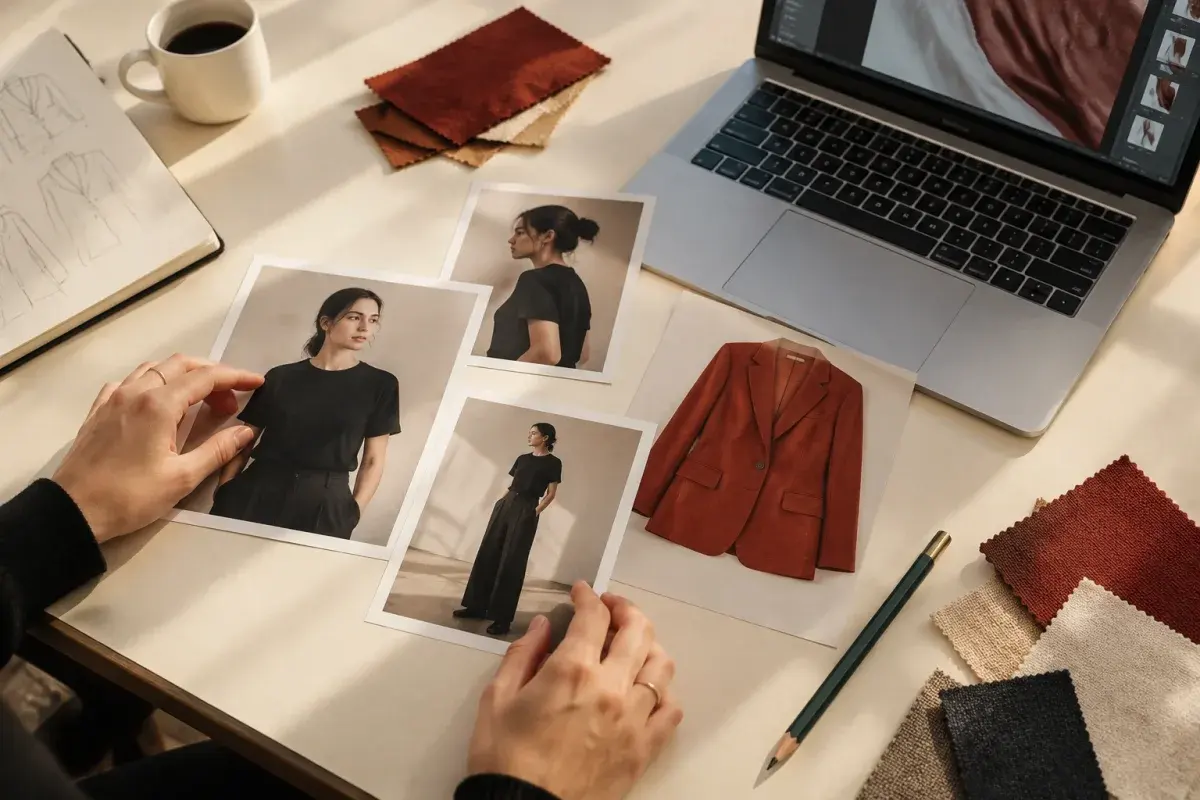
Clothing Product Photography for an Online Store
Plan clothing product photography from shot list to export: choose a format, prepare garments, control light, capture useful details, and check the finished set.
Quick answer
Prepare the garment, plan the views, keep the setup consistent, and inspect the finished set against the physical item. Make each photo answer a different buyer question. Add styling images after you have covered the product itself.
- Plan a complete garment view plus the back, construction details, fabric and relevant condition details.
- Prepare the clothing and keep lighting, framing and color consistent before editing the set.
- Keep generated styling concepts separate from images documenting the item a customer will receive.
Your customer cannot turn a shirt over, feel its fabric, or check the fastening before ordering. Clothing product photography needs to answer those questions in pictures. You can start with a simple setup; the first goal is a complete, consistent view of the actual garment. This guide gives you a repeatable shoot plan and a checklist to use before packing the equipment away.
Which photography format works for your clothing?
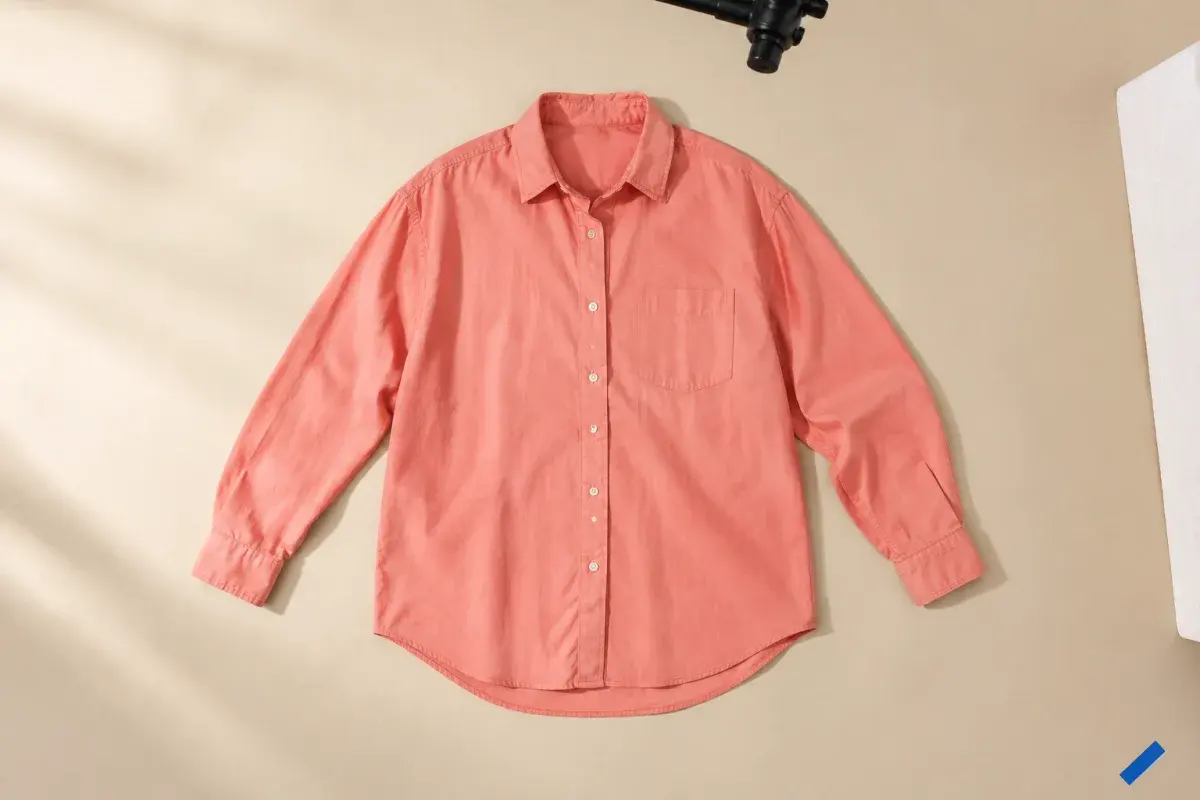
Shopify’s clothing photography guide separates flat lays, model or mannequin images, and lifestyle photography. Choose the format that explains your garment most clearly, then add other views where they provide missing information. A flat lay can show a print while a worn view explains the volume of a jacket.
Decide what belongs in the main listing image before adding props. A scarf styled around a coat may look good, but it can hide the lapels or create doubt about what is included. Keep the main product view clear and put the styled combination later in the set.
| Format | What it can explain | What to inspect |
|---|---|---|
| Flat lay | Overall outline, color arrangement, and visible design | Folds or overlapping sleeves hiding the cut |
| Model or mannequin | How the actual garment hangs on that body or form | Clips, poses, or styling that disguise the shape |
| Lifestyle | An outfit combination and setting | Whether the product remains clearly identifiable |
| Detail | Texture, closures, labels, and condition | Focus and enough context to locate the detail |
Step 1: build a small, repeatable setup
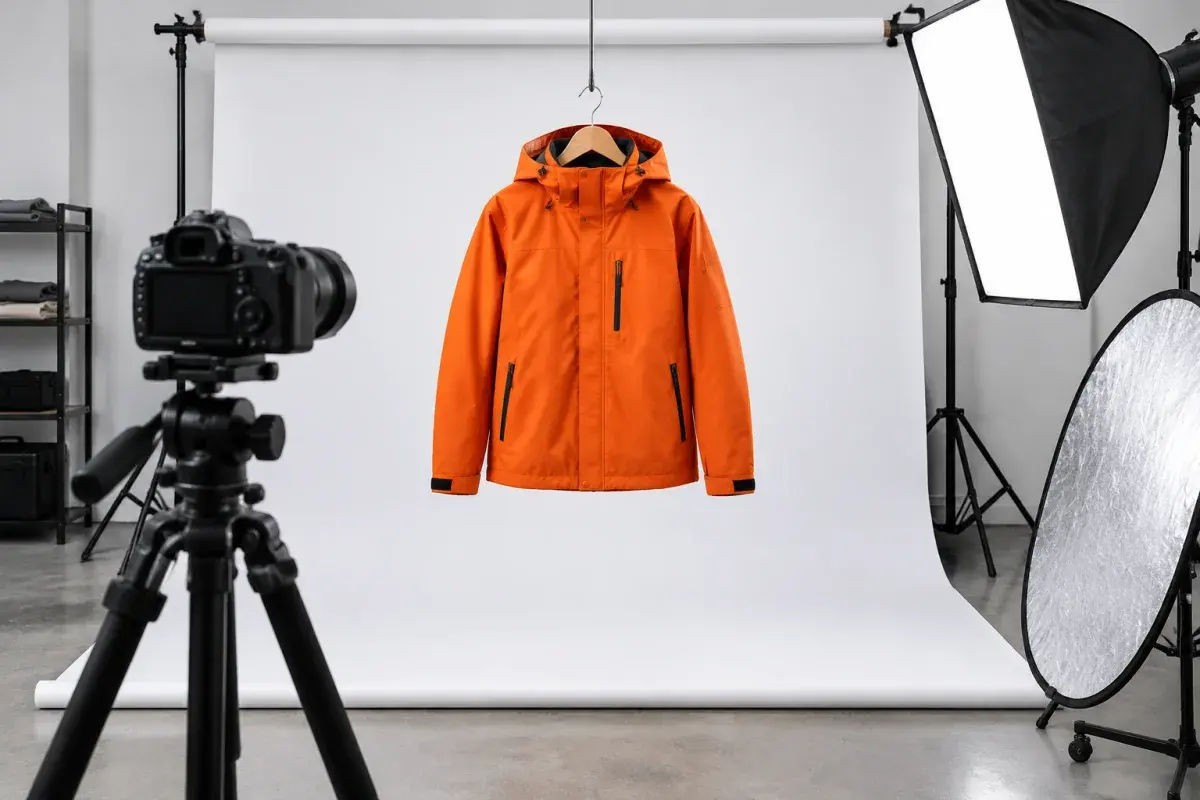
Start with a camera or phone you can operate, a stable support, a background large enough for the garment, and light you can control. Adobe’s product photography guide emphasizes planning the required views, keeping backgrounds simple, and using a controlled lighting setup. It also notes that a smartphone can be a starting option.
Choose one garment as your test item. Photograph it in the proposed position, then inspect the image on a larger screen. Can you distinguish the edges and see the texture? Is the whole item in focus? Adjust the setup before bringing in the rest of the batch, and mark the camera and garment positions so you can repeat them.
- Leave enough background around the garment to allow your planned crop.
- Keep the camera level with the surface or subject you intend to photograph.
- Use the same camera distance for comparable products instead of resizing each item by eye later.
- Write down the light position and camera setup after the test image looks usable.
Step 2: prepare the clothing before editing anything
Check the actual item for lint, loose threads, distracting packaging, and wrinkles. Arrange the neckline, sleeves, fastenings, and hem deliberately. For a set of variants, decide whether all jackets will be shown open or closed and whether shirts will be tucked or untucked. Consistent styling makes the differences between products easier to see.
Separate removable presentation problems from product condition. A temporary crease can be addressed before shooting; wear, fading, or a repaired seam on a resale item should remain documented. Avoid pulling or pinning a garment into a shape that the listing leaves unexplained.
Shopify recommends inspecting garments, removing lint and ironing or steaming wrinkles before shooting. Shopify: clothing photography formats and shoot preparation [1]
Step 3: turn buyer questions into a shot list
Use the following list as a starting plan, not a requirement to create six nearly identical photos. Add a view when it answers something the others cannot. A reversible jacket needs both surfaces; a plain T-shirt may need fewer construction views but still benefits from a clear print or fabric detail.
Assign filenames while shooting so you can tell front, back, and details apart without reopening every file. If several colors share a style, photograph each actual variant rather than recoloring one image and treating it as evidence of the others.
Adobe recommends planning a shot list and capturing multiple views, including detail images, for product photography. Adobe: product photography planning, lighting, and editing [2]
| Photo | Buyer question | Check before moving on |
|---|---|---|
| Complete front | What does the whole item look like? | Neckline, sleeves, and hem remain in frame |
| Complete back | What is different on the back? | Show the actual back, including seams or closures |
| Fabric or print detail | What texture or pattern should I expect? | Focus on the material rather than the background |
| Construction detail | How does it fasten or adjust? | Show the relevant zip, button, strap, or pocket |
| Label | What size, composition, or care is stated? | Make the text readable where relevant |
| Condition or shape view | Is there wear, or volume I cannot judge? | Show the issue clearly with enough context |
Step 4: check light, color, and focus as you shoot
Keep one test image visible as a reference while you work through the batch. If the light changes, compare the next image before continuing. A pale garment needs enough separation from a pale background; a dark garment still needs visible construction detail rather than a solid silhouette.
Use camera settings that produce a sharp, correctly exposed photograph in your setup. There is no single setting that covers a flat lay near a window, a moving model, and a close-up of a label. Check both the full view and the smallest detail you intend the customer to inspect. If a sleeve is soft or a label is unreadable, reshoot while the item is still ready.
- Color: compare the photograph with the physical item under consistent viewing conditions.
- Exposure: retain detail in light fabric and dark folds.
- Focus: inspect labels, fastenings, and prints at a useful viewing size.
- Framing: leave room for the crop without cutting off sleeves or hems.
Step 5: edit for consistency and prepare the files
Make the set consistent in crop, orientation, and brightness while keeping the garment’s proportions intact. Correct presentation problems without changing construction or condition. Removing background clutter is a different decision from removing a mark that belongs to the item you are selling.
Keep the original files and export a separate set for the store. Check the current image requirements of the platform or marketplace you use instead of applying a universal pixel size or compression setting. Open the actual uploaded files on desktop and mobile: a good export can still be displayed with an unsuitable crop or an unreadable detail view.
Choose a separate garment reference for virtual try-on
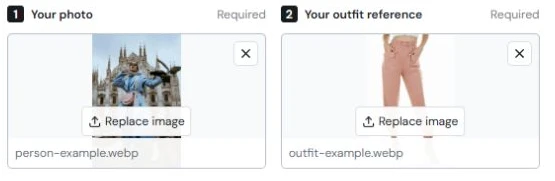
Once the product set is complete, choose the clearest garment image for a try-on reference. A close-up made for texture is usually missing the shape information a whole-outfit edit needs. Select a complete view with visible edges and as little obstruction as possible.
ClothesSwitch takes a person photo and an outfit reference in its homepage studio. Use its output to explore styling, then compare it with the real garment. Keep generated imagery labeled and separate from documentary product views: a changed neckline, invented texture, or inaccurate print should not become the customer’s only evidence of the item.
Review the listing as a customer would
Read the product description beside the images. If you describe a lining, show it. If a belt is excluded, avoid letting the photographs imply it comes with the garment. Each new view should clarify the item rather than repeat the same attractive angle.
Before clearing the setup, inspect the whole set in order: main image, alternate views, details, and condition. Ask someone unfamiliar with the item what they still cannot tell. A missing photograph is easier to make now than after every garment has been packed away.
- Do the photographs show the correct item and color variant?
- Can a buyer understand the front, back, fastenings, material, and relevant wear?
- Are the photos consistent without stretching or disguising the garment?
- Are source photographs retained and generated styling images clearly distinguished?
Frequently asked questions
Can I photograph clothes for an online store with a phone?
A phone can be a starting option. Give more attention to stability, light, framing, and checking the actual image than to buying a new camera first. Test one garment and inspect both the full view and the details before committing to a batch.
How many photos does each clothing item need?
Use enough distinct views to explain the actual item, subject to your platform’s requirements. Start with front and back, then add fabric, construction, labels, shape, or condition views as needed. A count alone is less useful than checking whether the set answers the buyer’s questions.
Should I use flat lays or a model?
Choose by the information you need to show. A flat lay can explain outline and design; a model or mannequin can show how the actual garment hangs on that form. Use both when the second view adds information rather than treating one format as automatically better.
Can a generated outfit image replace my product photos?
Keep accurate photographs of the real item as the reference for construction, color, and condition. A generated outfit may alter those details. Label it as a styling visualization and retain real product views alongside it.
What is the best photo to use as an outfit reference?
Choose a complete, sharp garment view with readable edges and visible neckline, sleeves, and hem. A product image can work, but an extreme crop or a busy collage may omit the information needed for an outfit change. Check any imported image before generating.
Sources and editorial notes
This is a practical shoot-planning guide informed by Shopify and Adobe's published photography guidance. The checklists are editorial recommendations, not results from a measured sales-conversion study. Generated styling images are distinguished from photographs of the actual item.
Editorial update: October 24, 2026. The references below support the attributed information in this guide. Third-party features and terms may change; check the linked publisher before acting.