Best Clothes Changer Apps and Online Tools
Compare ClothesSwitch, insMind, FASHN, and Kolors by their inputs and editing workflows. Choose a clothes changer for the photo you want to make.
Quick answer
For a specific outfit, start with an image-reference workflow. For a new clothing idea, consider a brush-and-prompt editor. For repeated fashion production, investigate a dedicated platform and its export workflow. This shortlist compares documented features, not measured output quality.
- Choose a reference-image workflow when you have a photograph of a particular garment.
- A selection-and-prompt editor is another option when your outfit idea is expressed in words.
- Compare garment detail, identity, export options and retry costs. This guide does not establish a quality winner.
The best clothes changer for a specific jacket is not necessarily the best tool for inventing a costume. Some editors take a garment reference, some generate clothes from a written description, and others are built around producing product imagery. Start with the image you need to make, then choose a workflow that accepts the inputs you have.
At a glance: choose by the edit you need
This is a feature-based shortlist of four different workflows. We checked the linked official pages on October 23, 2026 and reviewed our own studio controls. We have not run a controlled output test across all four services, so the order is not a ranking of realism, speed, or value. ClothesSwitch is our product and is included in that capacity.
Use the table to narrow your options. Then check the current service for access, credits, download restrictions, and intended use before uploading a full set of images. Check the generation and export requirements separately before choosing a service.
| Tool | Input workflow | Consider it for | Check before committing |
|---|---|---|---|
| ClothesSwitch | Person photo + outfit reference; optional instructions | Trying a reference outfit in the homepage studio | No wardrobe catalog or batch workflow |
| insMind | Person photo + brushed clothing area + written description | Describing a new look or targeting a garment area | Selection edges and download conditions |
| FASHN | Person/model image + product image | Fashion product imagery and a broader production workflow | Plan, export, and API requirements |
| Kolors | Person image + garment image in the official demo | Exploring a two-image virtual try-on demo | Hosted availability and current notices |
ClothesSwitch: a reference outfit with optional direction
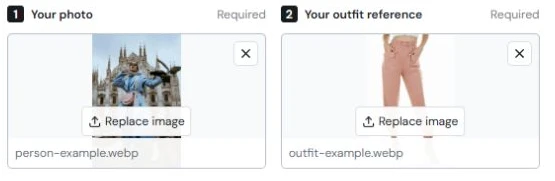
Our homepage studio requires sign-in and an active paid subscription for generation. It takes a person photo and an outfit reference. You can upload the clothing image directly or try importing the main image from a supported Amazon product link. Optional instructions let you request a styling detail, such as keeping your shoes or using only the reference jacket.
When generation finishes, the studio offers a before-and-after slider and an image download. This workflow is a candidate when you already know which garment or outfit you want to visualize. It requires an outfit image; the instruction box is not a substitute for that input. The current studio also does not catalog your wardrobe or provide batch processing.
insMind: brush an area and describe new clothes
insMind’s clothes changer page describes a different starting point: upload a portrait, brush over the clothing area, and write what should replace it. Its examples describe garment type, color, fit, and fabric. That makes it worth considering when you have an outfit idea in words rather than a photograph of the exact item.
The selection step gives you an area to work on, but it also gives you an edge to inspect. Pay attention to sleeves next to hands, narrow straps, and fabric overlapping hair. If your goal is an exact retail garment, do not assume that a written description supplies the same information as its product photo. Check which reference and export options the current editor offers.
insMind's own clothes changer page describes uploading a photo, marking the clothing area and giving a replacement prompt. insMind: clothes changer workflow [1]
FASHN: product-reference try-on in a fashion platform
FASHN’s official try-on documentation uses a model image and a product image, with optional generation settings and styling instructions. Its platform also describes a gallery and further editing or export tools, while its API supports integration into other workflows. This makes it a candidate for a brand evaluating repeat product-image work rather than a single outfit edit.
Distinguish Try-On from the platform’s other tasks. Placing a product on an existing person, creating a new model image, and replacing the model in a photograph are different operations. Start with the documented task that matches your brief, then confirm its current account, export, and usage terms. A production feature list is not evidence that a particular print or logo will survive your edit exactly.
FASHN's Try-On documentation describes its model and product inputs. These documented controls are not evidence of a comparative quality score. FASHN Help: Try-On inputs and workflow [3]
Kolors: explore the official two-image demo
The Kwai-Kolors Hugging Face demo publishes a person-image input, garment-image input, Run action, and seed controls. It is useful to consider if you want to explore that specific virtual try-on demonstration. Use the publisher’s Space linked below rather than assuming that a similarly named website is the same service.
A hosted demo needs a different evaluation from an ongoing production platform. Check whether it is available when you need it, read its current notices, and retain your own inputs for comparison. This guide does not promise a fixed waiting time, included allowance, or production service level. Our separate Kolors guide explains the documented workflow in more detail.
The published Kwai-Kolors interface defines Person image, Garment image and result controls. Kwai-Kolors: published demo controls [5]
How to compare clothes changers with your own photos
Use a small repeatable comparison before buying access or moving a larger project. Start with a clear person photo and one simple garment reference. Use the same inputs wherever the service supports them. For a prompt-based editor, record that the input method differs instead of presenting the result as an identical test.
Write down what counts as a useful result before looking at the outputs. A personal outfit idea may tolerate an approximate texture. A product image with a distinctive fastening needs closer inspection. Keep the failed attempts in your notes as well as the strongest image; a polished example on its own says little about repeatability.
- Garment: compare shape, neckline, closures, hem, color, and print with the source.
- Person: inspect face, hands, hair, proportions, and pose.
- Edges: look for leftover fabric or changes to bags, sleeves, and background objects.
- Workflow: record selection work, retries, actual waiting time, and whether the file downloads as needed.
- Cost: include retries and the export option you actually need, not just the advertised entry offer.
Make the choice around one completed task
If you have a specific garment photo, begin with a reference-image workflow. If you want to describe a new suit or costume, a brush-and-prompt workflow may be a more direct starting point. If you need a maintained clothing inventory and daily outfit planning, use a wardrobe planner instead of expecting an image editor to remember your closet.
Before paying, finish one complete task: add the inputs, make the edit, inspect it, and download the required file. Check what the service says about uploaded photos and intended use. A generated outfit is a visual preview; it does not establish garment measurements or how the real item will fit.
Frequently asked questions
What is the best clothes changer app?
Choose by the input you have and the output you need. A garment-reference tool is a starting point for a specific outfit; a brush-and-prompt editor suits a look described in words. This guide compares those workflows without claiming a tested winner for image quality.
Do online clothes changers require a subscription?
ClothesSwitch requires sign-in and an active paid subscription for every generation. See Pricing for current checkout availability. Other services have their own pricing, generation limits, and export requirements; check their current terms.
Can I use these tools without downloading an app?
The tools in this shortlist have browser-accessible workflows or demos. A mobile app is not required to explore those web interfaces, although access and available features depend on the individual service.
Which tool keeps the face and garment details most accurately?
We have not established that through a controlled comparison. Test the same permitted inputs and inspect identity, garment construction, patterns, and boundaries. Feature descriptions and selected promotional examples do not establish an accuracy ranking.
Sources and editorial notes
This is a comparison of documented features and input workflows, not a controlled image-quality benchmark. ClothesSwitch is our product. Official product pages support the third-party descriptions; availability, prices and account terms can change.
Editorial update: October 24, 2026. The references below support the attributed information in this guide. Third-party features and terms may change; check the linked publisher before acting.
- insMind: clothes changer workflow insmind.com
- FASHN: virtual try-on fashn.ai
- FASHN Help: Try-On inputs and workflow help.fashn.ai
- Kwai-Kolors: official virtual try-on demo huggingface.co
- Kwai-Kolors: published demo controls huggingface.co