How to Change the Color of Clothes in a Photo
Change the color of clothes in a photo with Photoshop, a browser editor, or mobile masking. Follow the steps and fix color bleed, flat fabric, and rough edges.
Quick answer
Select the garment, refine the selection into a mask, and apply a color adjustment you can revise. Check the neckline, cuffs, folds, and nearby skin before exporting. A targeted adjustment is the better starting point when the garment itself must stay unchanged; generative outfit editing needs a separate check for altered details.
- For a color-only change, isolate the garment with a mask and apply a color adjustment inside that area.
- Retain fabric highlights and shadows; inspect collars, hair and fingers for color bleed.
- ClothesSwitch visualizes a reference outfit. It has no dedicated color picker or garment-selection mask.
You want the same shirt in a different color, with its seams, folds, and the person wearing it still intact. Start by isolating the clothing, then adjust its color inside that area. This guide explains how to change the color of clothes in a photo using Photoshop, an online layer editor, or mobile masking. It also covers the awkward cases: white fabric, dark clothing, prints, and color spilling onto skin.
What is the best way to change clothing color?
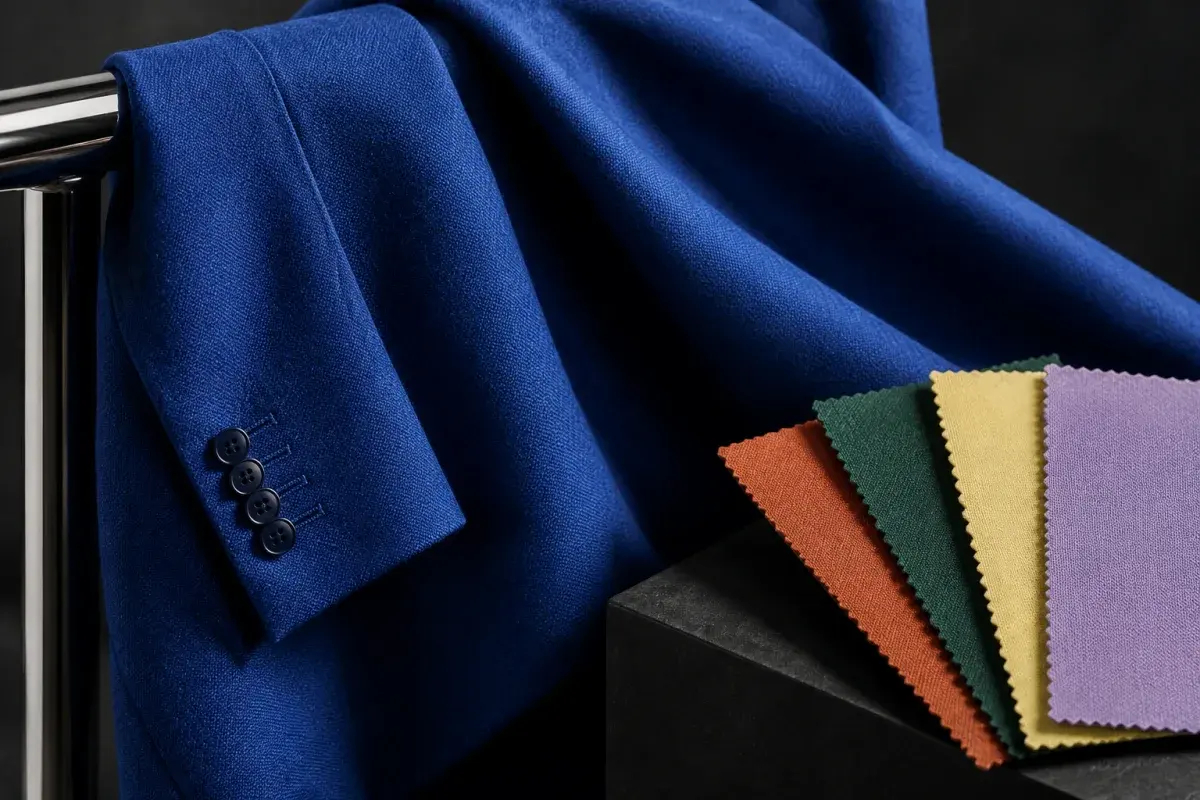
For a simple recolor, look for an editor with selections, masks, and color adjustments. A global Hue slider affects matching colors across the image. A garment mask limits where the adjustment appears, which matters when the shirt shares a color with skin, a wall, or another piece of clothing.
Photoshop and Photopea document adjustment layers that leave the original image available below the edit. Lightroom mobile offers selective color controls inside masks. Pick the workflow you can inspect and revise, rather than judging only the first small preview.
| Method | Use it when | What to watch |
|---|---|---|
| Photoshop adjustment layer | You need detailed control over the garment boundary | The mask needs care around hair, hands, and transparent fabric |
| Browser layer editor, such as Photopea | You want a selection-and-adjustment workflow in a browser | Keep an editable project as well as the finished image |
| Lightroom mobile masking | You want to make a selective color edit on a phone | Check which masking controls your version and subscription provide |
| Generative outfit editor | You are exploring a styling variation and can review changes | It may change shape, print, texture, or other parts of the photo |
Start with a photo that shows the fabric clearly
Use the original file when possible. You need enough detail to distinguish a sleeve from the background and a button from the fabric around it. A heavily compressed screenshot makes those boundaries harder to inspect. Keep an untouched copy before editing.
Decide exactly what should change. On a red shirt with white stripes, do you want only the red areas to become blue, or do you want the entire shirt tinted? Should buttons and embroidery keep their colors? Make that choice before selecting the garment, because it determines what the mask must protect.
If the whole photograph has a color cast, correct that first. Changing a shirt to compensate for yellow room light can leave it looking wrong when the rest of the image is corrected later. For an outfit preview, choose a descriptive target such as muted forest green; for a product mockup, keep the supplied reference swatch beside the image.
Photoshop: select the clothes and create an adjustment layer
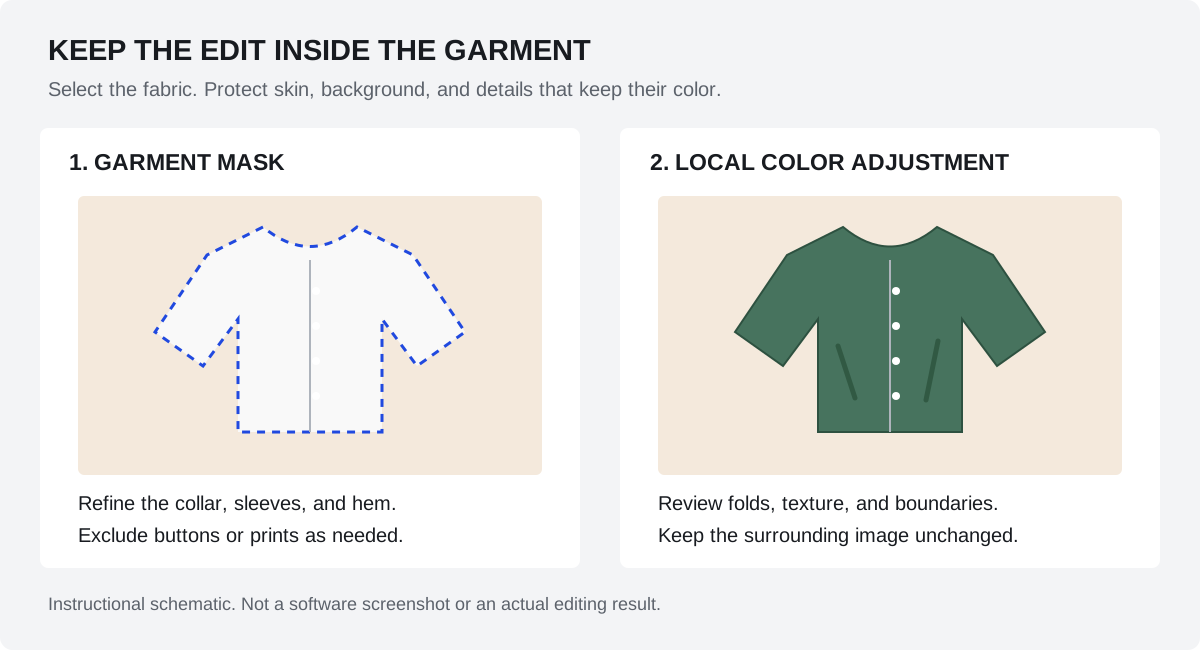
Adobe’s object-color workflow begins with Quick Selection. Select the clothing, then inspect the collar, sleeves, and hem. Remove skin and background from the selection, and add any missed fabric. Selecting the person is only a starting point if the face, hair, and hands are also included.
With the selection active, choose Hue/Saturation in the Adjustments panel. Adobe documents the current location as Adjustments > Single adjustments. The selection becomes the adjustment layer’s mask, limiting the effect to the selected area. Keep the image layer underneath so you can revise or disable the edit.
Use the mask thumbnail to refine the boundary. White reveals the adjustment and black hides it. Work closely around hair and fingers, but also check the image at its intended viewing size. An excessively soft edge can leave a colored halo just outside the clothing.
- Select the garment before making a large color adjustment.
- Check both the outside outline and openings, such as the space inside a sleeve.
- Protect buttons, logos, and trims when they should keep their original color.
- Toggle the adjustment off and on to see whether anything outside the clothing changes.
Adobe documents selecting the object and applying a Hue/Saturation adjustment to replace its color. Adobe Photoshop: replace object colors with Hue/Saturation [1]
Photoshop: adjust the color, then inspect the shading
Move Hue toward the target color, then adjust Saturation. Start with Lightness at zero and watch the folds rather than pushing all three sliders at once. Adobe recommends keeping Lightness at zero to retain contrast; it also describes Hue blending mode as an option for preserving contrast and saturation.
If the original color still influences the result, Adobe suggests trying Colorize and adjusting again. Compare the result with the original at the same zoom. The new color should still have lighter raised areas and darker folds. If stitching or fabric texture disappears, reduce the adjustment and check whether you are forcing too large a brightness change.
For a patterned item, use separate masks or more selective color adjustments when only part of the print should change. Do not assume one tint can preserve every color relationship in a multicolored design. Save the layered project before exporting a separate finished copy.
Change clothing color online with a layer editor
Photopea provides a browser-based route using the same selection, mask, and adjustment principles. Open your photo, select the garment, and choose Layer > New Adjustment Layer > Hue / Saturation. Its official documentation explains that adjustment layers can have their own masks and that white areas of a mask reveal the adjustment.
Inspect the new layer’s mask before changing the color. If it is fully white and the whole scene changes, restrict it to the clothing using the editor’s selection and mask tools. Then adjust Hue and Saturation while watching the garment and the surrounding image. A browser editor still needs an accurate selection; being online does not remove that step.
Keep an editable layered copy so you can fix a missed cuff later. Export an image copy for sharing and reopen it to check the result. Browser menus and available controls can change, so use the linked Photopea documentation if your interface differs.
Photopea documents adjustment layers and attaching a raster mask to limit their effect. Photopea: adjustment layers and masks [2]
Change clothing color on a phone with a local mask
In Lightroom mobile, open the photo and choose Masking > Create new Mask > Brush. Adobe’s mobile documentation describes painting a mask directly and using Color controls within the masked area. Brush over the garment, zoom in around the edges, and use the eraser to remove spill onto skin or the background.
Adjust Hue and Saturation inside that mask, then compare the edited photo with the original. A broad color-range selection may also pick up objects with the same color elsewhere, so inspect the mask rather than assuming it contains only the shirt. Check feature access for your app version and subscription before relying on this workflow.
Use a modest color change for the first attempt. Check the exported file on a larger screen if possible, especially for hair crossing a collar or fingers resting on the fabric. Those details are easy to miss in a small preview.
Adobe's Lightroom mobile documentation explains local masks and adjustments within the selected area. Adobe Lightroom mobile: create masks and apply local color adjustments [3]
Handle white, black, and patterned clothes separately
White and neutral gray have little saturation, so rotating Hue alone may do very little. Adding color is only part of the job: the highlights and shadows still need to describe the fabric. On dark clothing, a bright target color also requires a brightness change. Inspect whether the original contains enough detail to support it.
Treat a black-to-white conversion as a more involved retouch, rather than a promise that one slider will produce a natural result. PHLEARN’s clothing-color tutorial demonstrates additional tonal work with Curves for black and white changes. If the source has featureless black shadows or blown-out white fabric, do not expect a color adjustment to recover missing texture.
For stripes, embroidery, lace, and transparent fabric, decide what belongs in the edit. A single color overlay can tint a white logo or the skin visible through lace. Refine those areas separately, or choose a clearer source photo when the boundaries cannot be resolved confidently.
PHLEARN's clothing-color tutorial treats black and white as tonal adjustments as well as hue changes. PHLEARN: changing clothing color, including black and white [4]
Fix color bleed, flat fabric, and rough edges
Change one setting at a time and compare at the same zoom. Start with the mask if the wrong area changes; inspect tone and saturation if the right area changes but looks artificial. The following checks help separate those problems.
| Problem | Check | Next adjustment |
|---|---|---|
| Skin or the wall changes color | The adjustment reaches outside the garment | Refine the mask rather than correcting the whole image |
| A colored fringe follows the sleeve | The mask extends past the edge or is too soft | Refine that boundary and compare at normal viewing size |
| Fabric looks like a solid painted shape | The edit has lost tonal contrast or too much saturation was added | Reduce the adjustment and restore a useful light-to-shadow range |
| White clothing barely changes | Hue is being adjusted on nearly neutral fabric | Use a controlled colorizing approach and review the tonal result |
| Buttons or print are tinted | Those details are included in the adjustment mask | Exclude them or edit the intended color areas separately |
| The shade differs between two photos | Source light, exposure, or white balance differs | Compare the sources before copying the same slider values |
| An outfit editor changes the cut | The workflow generates new image content | Use a targeted masked adjustment when the original construction must remain |
When to use a generative clothes changer
An outfit editor can help explore a styling idea, but it can also alter seams, buttons, texture, and other parts of the image. If the task requires the existing garment to remain intact, start with a masked color adjustment and inspect the finished boundary.
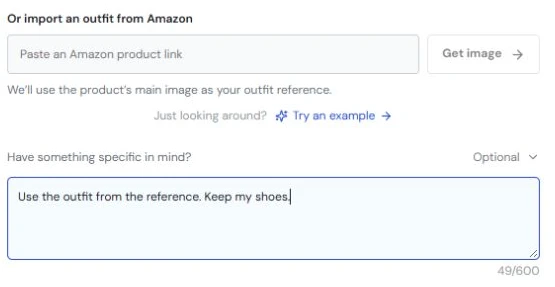
ClothesSwitch’s homepage studio takes both a person photo and an outfit reference, with optional instructions. It currently has no garment-selection mask or dedicated color picker, and a text instruction does not replace either required image. Use that workflow when you also want to explore a reference outfit, rather than treating it as a guaranteed color-only edit.
For such an outfit experiment, a focused instruction could be: Use the green jacket in the reference; keep the rest of my outfit and the background. That is an example request, not a tested promise. Compare the output with both originals before keeping it. The linked photo-editing guide walks through the actual studio controls.
Check the finished image before exporting
Inspect the neckline, cuffs, hem, buttons, and places where hands or hair cross the fabric. Toggle the edit to confirm that skin, pose, and background remain as intended. Review both a close view and the final sharing size; each can reveal a different problem.
Keep the original, the editable project, and the exported image as separate files. If you are making product mockups, label edited color variants as visualizations and compare them with the actual fabric. A recolored photograph alone is not evidence that a physical garment is available in that shade or will match it under different lighting.
Frequently asked questions
Can I change clothing color without changing the background?
Use a garment selection and mask to restrict the color adjustment. A global Hue change can affect similar colors elsewhere. Check the mask at the neckline, sleeves, and hem, then toggle the adjustment to confirm that the surroundings stay unchanged.
Can I change the color of clothes in a photo online?
Yes. A browser layer editor such as Photopea provides selections, masks, and Hue / Saturation adjustment layers. Restrict the edit to the garment, refine the edges, and save an editable project as well as the exported photo.
How do I change shirt color on my phone?
Use an editor with local masking and color controls. In Lightroom mobile, paint a Brush mask over the shirt, erase spill, and adjust color within that mask. Feature access can depend on your version and subscription, so check before starting.
Why does Hue not work on a white or black shirt?
Near-neutral fabric has little saturation to shift, and a dark-to-light change also needs tonal work. Try a controlled colorizing adjustment and inspect the shading. Do not push brightness so far that folds and texture disappear, or expect missing source detail to be restored.
Can I preserve stripes, logos, and fabric texture?
Use a mask that excludes details which should retain their color, and make selective adjustments for different printed areas. Preserve the original tonal detail while editing. Inspect the exported file, because a small preview can hide softened texture or a tinted logo.
Can ClothesSwitch change only the color from a text prompt?
The current studio requires both a person photo and an outfit reference. Optional text can guide an outfit edit, but it is not a standalone color-only mode and does not guarantee unchanged garment details. Use a masked adjustment workflow when precise recoloring is the task.
Sources and editorial notes
The editing instructions refer to Adobe and Photopea's documentation, with PHLEARN as a supplementary tutorial. These are workflow explanations, not a guarantee that a color edit matches a physical dye or fabric swatch. ClothesSwitch's reference-based generation is described separately from mask-based recoloring.
Editorial update: October 24, 2026. The references below support the attributed information in this guide. Third-party features and terms may change; check the linked publisher before acting.
- Adobe Photoshop: replace object colors with Hue/Saturation helpx.adobe.com
- Photopea: adjustment layers and masks photopea.com
- Adobe Lightroom mobile: create masks and apply local color adjustments helpx.adobe.com
- PHLEARN: changing clothing color, including black and white phlearn.com